🚀 DevOps Learning Journey: Day 4 – Linux, Virtual Machines & DevOps
Hey people 👋
Welcome to Day 4 of my DevOps learning series! Today, I explored the basics of Linux and Virtual Machines (VMs) — the foundation of most DevOps tools and practices.
If you’re new to Linux or wondering what makes VMs so important in the IT world, this post is for you. Let’s break it down in the simplest way possible.
🐧 What is Linux?
Linux is an open-source operating system (OS) — just like Windows or macOS, but free and customizable. It is used widely in servers, cloud platforms, and almost every DevOps setup.
🤔 If we already have Windows and macOS, why Linux?
Here’s why Linux is preferred in IT:
Security 🛡️
Linux is more secure and less vulnerable to viruses. That’s why most servers and cloud systems run on it.User Management 👤
Linux allows you to create multiple users, each with their own environment and permissions. It’s great for managing teams.Portability 💼
You can create a Linux-based virtual machine (VM) and run it on any operating system — Windows, macOS, or even in the cloud.Backend Access 🔧
Linux gives full control through the terminal (command line). Developers and DevOps engineers love it because they can automate everything using simple scripts.
🧾 Types of Linux (Distributions)
There are many versions of Linux. These are called distributions (or distros). Each is built for a specific use-case.
| Linux Distribution | Best For | Why? |
| Ubuntu | Beginners | Easy to use, widely supported |
| RHEL (Red Hat) | Enterprises | Used by large companies, comes with support |
| Kali Linux | Security experts | Has built-in tools for ethical hacking |
| Arch Linux | Advanced users | Minimal setup, very customizable |
| Debian | Servers & Companies | Stable and reliable, similar to Ubuntu |
🧱 Linux Architecture (Explained in Simple Words)
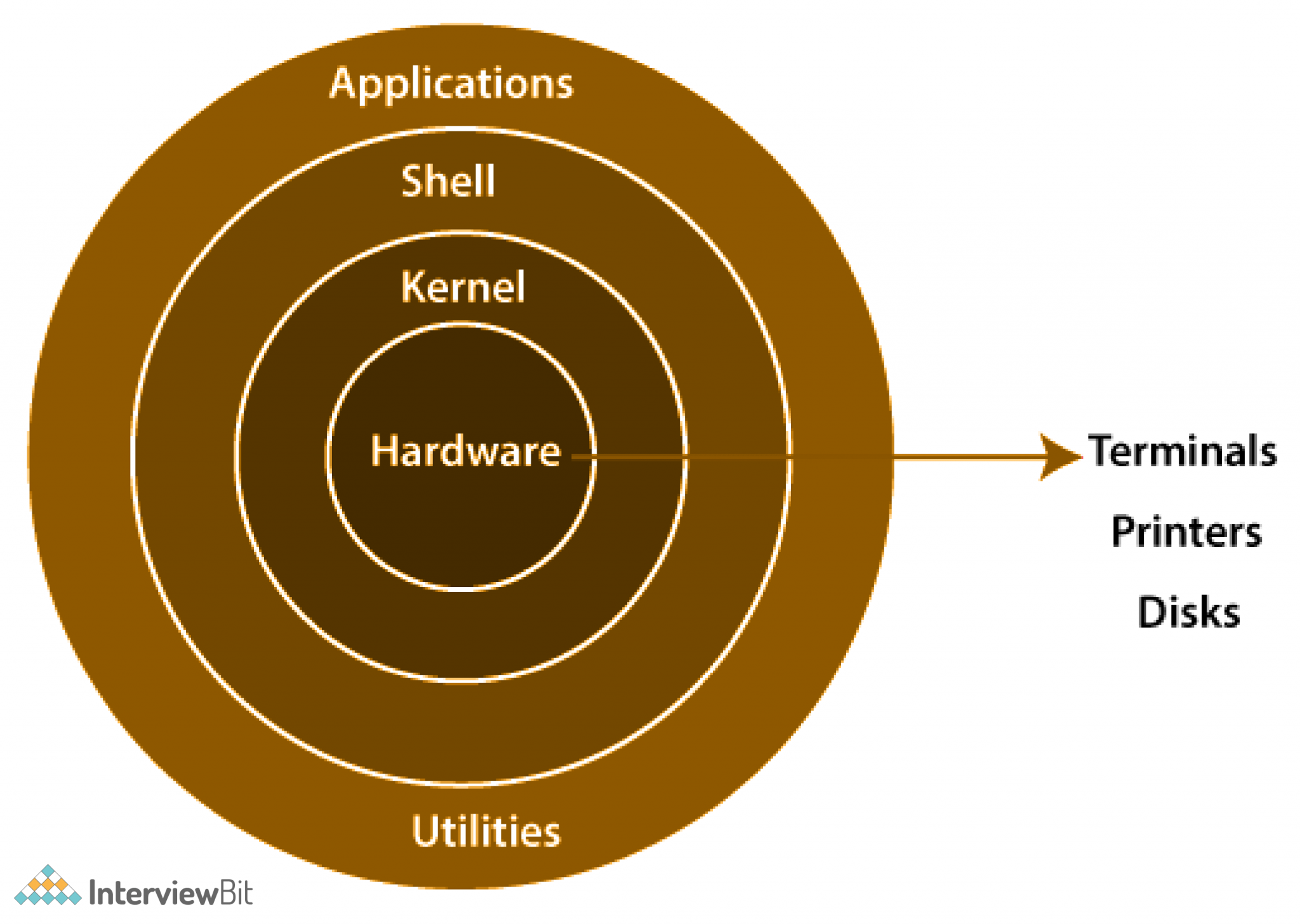
Linux is built like a layered cake — each layer does a specific job, and all the layers work together to run your system. Here’s a simple breakdown:
🧩 Layers of Linux:
Hardware – This is your actual computer: the CPU, memory, hard disk, etc.
Kernel – Think of this as the brain of Linux. It talks directly to the hardware. When an app needs to save a file or use memory, the kernel handles it.
System Libraries – These are helper files that apps use to talk to the kernel. One popular example is glibc, which provides basic functions like copying data or handling files.
System Utilities – These are the everyday commands like ls, cp, mkdir. They let you interact with the system easily.
User Interface (Shell) – This is what you see when you open the terminal. It can be Bash or any other shell that allows you to type and run commands.
Applications – These are the tools and software you install like Docker, browsers, or text editors.
🧠 Real-Life Example: Copying a File
Imagine you’re copying a file from one folder to another using the command line:
You type: cp file.txt /home/pooja/folder
The terminal (UI) sends the command to the system utility (cp)
That utility uses system libraries (like glibc) to request access to memory and file storage
The kernel takes that request and tells the hardware to read from one location and write to another
The file gets copied, and you see it done instantly.
So while it looks like a single action to you, multiple layers are working behind the scenes to make it happen smoothly. That’s the beauty of Linux!
What is an VM?
A Virtual Machine is like a computer inside your computer.
You can install an operating system inside it.
It runs independently with its own memory, CPU, and storage.
But it shares the physical machine’s resources.
You can have many VMs on one laptop — each with a different OS, apps, and environment!
🆚 Virtual Machines vs Physical Servers
| Feature | Virtual Machine | Physical Server |
| Cost | Cheaper (run many VMs on one machine) | Expensive to buy & maintain |
| Setup Time | Quick (can launch in minutes) | Takes time to install/setup |
| Flexibility | Easy to modify, backup, or delete | Not as flexible |
| Use Case | Testing, development, automation | Production or large deployments |
🚀 Why DevOps Engineers Use VMs
Virtual Machines have made the lives of DevOps engineers so much easier. Here’s how:
💡 Scenario 1: Testing Environments
Imagine you’re a developer. You want to test your app on Ubuntu and Red Hat.
· You create 2 VMs: one with Ubuntu, one with RHEL.
· Test your app on both without affecting your main system.
💡 Scenario 2: Practice Labs
You want to learn Kubernetes.
Set up 3 VMs on your laptop (1 master + 2 workers).
Connect them like a real cluster and practice.
💡 Scenario 3: Working in Teams
· Your company provides VMs to each DevOps engineer
· Everyone works in the same standard environment
· No one has to worry about “it works on my machine” problems
💰 Saves Money & Time
No need to buy 5 separate laptops — just 1 powerful machine + 5 VMs
Easy to snapshot, restore, or delete test environments
Let’s learn together. If you’re just starting too, drop a comment or share your experience!
✨ Happy Learning,
👩💻 Jyothi Urade | #FromCloudToOps


